
How to take a medicine every other day or every few days
If you take a medicine every other day, once every few days, or for several days in a row with a break, choose the "Interval (skip days)" schedule in FlowByFlow. Reminders then come only on dose days, as long as notifications from the app are allowed on your phone. Your list of medicines shows a line such as "Every other day · 8:00 AM". The count starts on the day you add the medicine, so add it on a day you take it.
Examples: every other day, every 3 days, once a week
| How you take it | Days in a row | Days to skip | What the app shows |
|---|---|---|---|
| Every other day | 1 | 1 | Every other day |
| Every 3 days | 1 | 2 | Every 3 days |
| Once a week | 1 | 6 | Every 7 days |
| 3 days in a row, then 4 days without | 3 | 4 | 3 days in a row · then skip 4 days |
How to set it up
Open the "Meds" tab and tap the round "+" button at the bottom right. If the list is empty, tap "+ Add Medication".
Enter the name, then choose the form and the dose, as for any medicine. On the "How often?" step, tap "Interval (skip days)". Two fields appear below it.
In "Days in a row", leave 1 if you take the medicine on one day and then have a break. If you take it on several days in a row, raise the number with the "+" button.
"Days to skip" shows "—" at first. Tap "+" to set it to 1: that means every other day. For a longer break, tap "+" again. Each field takes 1 to 365 days. If no number is set, "Continue" keeps you on this step, and "Enter a valid interval (days)" appears under the field.
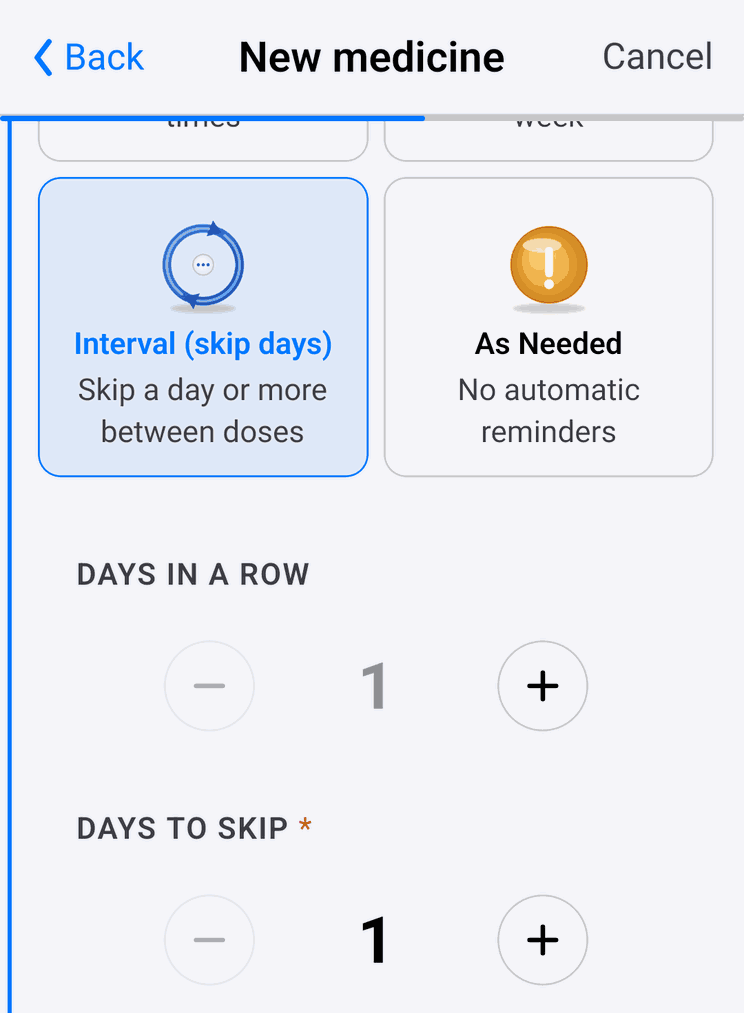
If you take the medicine for a limited time, turn on "Limited course" on the same step and enter the "Number of days". The app counts a course in calendar days, so a 10-day course every other day has 5 doses, and every 3 days it has 4 doses.
Tap "Continue". On the "When to take?" step, set the time and the dose as you would for a daily medicine. "+ Add Another Time" adds another dose on the same day, up to 12. For example, for 2 doses a day for 7 days in a row and then 21 days off, enter 7 and 21 in the fields and set two times here: each dose day then brings two reminders.
Go through the remaining steps and tap "Save".
Under the medicine's name in the "Meds" list, a line shows how often and at what time to take it.
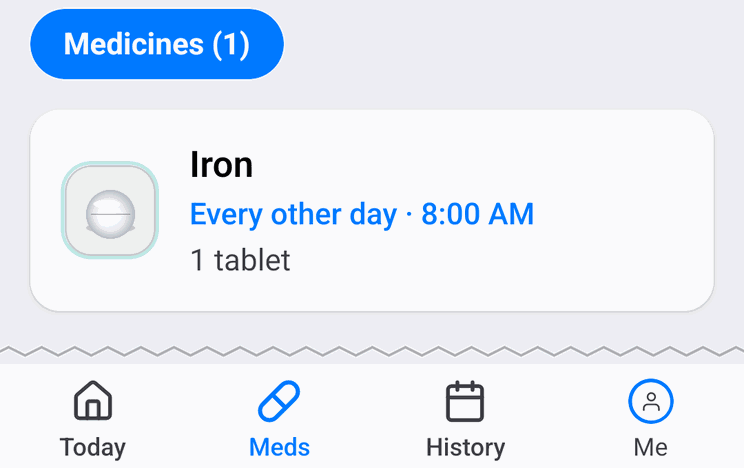
How the app counts the days
The first dose day is the day you added the medicine. Then come the dose days in a row, then the days without a dose, and the pattern repeats. If you mark a dose late, skip it, or take the medicine on a day without a dose, the next dose days do not move.
On a break day, this medicine is not among the planned doses on the "Today" screen, and no reminder comes for it.
The app plans reminders for this schedule up to a week ahead. If you do not open the app for about five days, a notification says "Your reminders may stop working". Open the app, and it plans the reminders again.
How to change the schedule
Open the medicine on the "Meds" tab and tap the "Schedule" row. The same choice opens as when you added it. Change the numbers and tap "Save Changes". The app counts the new pattern from the same first day as before and leaves past days as they were.
Limits
You cannot choose the first dose day. It is the day you added the medicine, or, if you start a course again, the day it starts again.
When you need a different schedule
- You take the medicine every day: choose "Daily".
- You take it every few hours, for example every 6 hours: choose "Daily" and set several times with that gap on the "When to take?" step. For every 6 hours, that is four times.
- You take it on certain days of the week: choose "Specific Days". A medicine has one schedule, so you cannot combine it with "Interval (skip days)".
The features page lists the other kinds of schedule.