
How to start using FlowByFlow without signing up
You can start using FlowByFlow without signing up: you open it as a guest, and you need no email or password. The "Today" screen then opens, and you can add your first medicine there. You need an internet connection to start.
Open the app. The sign-in buttons are on a panel at the bottom of the first screen. Pull the panel up, or tap the strip at its top, to see all of it.
Check the box to agree to storing your health data. It is under the buttons, and it is the only box on the screen. Until you check it, none of the sign-in buttons works, and "Check the box to continue." appears under the box.
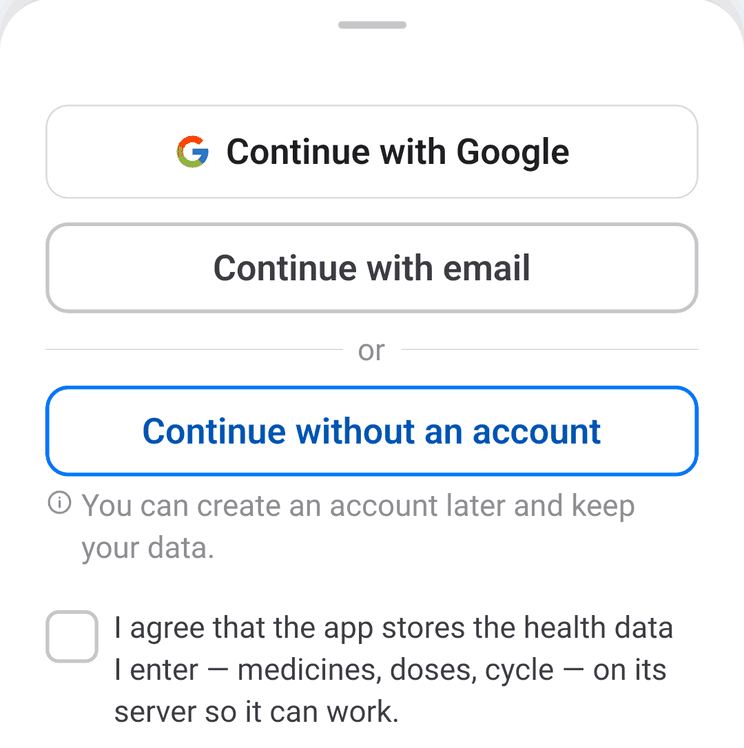
Tap "Continue without an account". If there is no internet connection, the app shows a network error. Connect to the internet and tap the button again.
The "Today" screen opens and says "Nothing yet". Tap "Add medicine".
What can happen to a guest's records
The records you add as a guest can be lost if you delete the app or change phones. On the "Me" tab, "Logout" opens a window that asks "Keep your data before you log out?". There, "Create account" opens the choice of sign-in methods, and "Delete all & log out" deletes the records permanently. To keep your records, create an account. The app may suggest this later on the "Today" screen; if you close the suggestion, it may appear again.
How to create an account later
If you do not yet have an account with that sign-in method, every medicine and record you added as a guest stays in the new account. You need an internet connection to create an account.
Open the tab at the bottom right. It is called "Me", or it shows the name from your profile.
At the top of the page, tap "Create account".
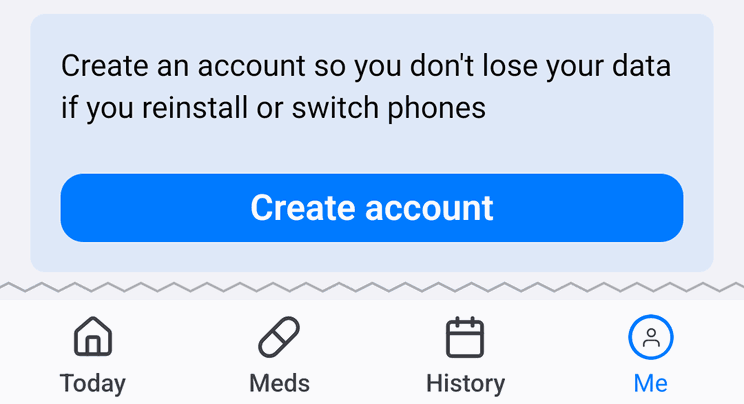
Choose a method: "Continue with Google", on iPhone also "Continue with Apple", or "Continue with email".
If you chose email, enter your address and a password of at least 8 characters, and tap "Create account".
The sign-in screen closes, and you are back in the app. The block with the "Create account" button disappears from the "Me" tab. After that, you do not lose your records if you delete the app. To get them back, sign in again: on the first screen, check the consent box and choose the method you used to create the account. For email, tap "Continue with email", enter your address and password, and tap "Log in".
On a new phone, sign in the same way. One account works on one phone at a time. If it is open on another phone, the app asks "Move your account to this device?". Tap "Move here".
If you already have an account
Records you added as a guest do not move into an account that already exists, including a Google or Apple account you have already used in the app. If you added something as a guest, the app warns you before you sign in: "The data on this phone will be replaced". If you tap "Sign in anyway", your account opens with its own records, and the records you added as a guest are lost. To keep them, go back and create a new account with a different email.
The features page explains how the app keeps your records.